Login to your cPanel (e.g. www.yourdomainname.com/cpanel).
Click on “phpMyAdmin” icon at Databases area.

Click on the name of database that you would like to export from the left menu.

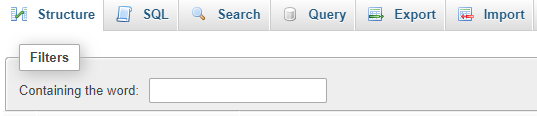
Click on “Export” tab.

Select “Custom – display all possible options”.

Click “Select All” and ensure “SQL” format is selected. Choose “Save output to a file”.

Click “Go” button.
Click “Save File” and click “OK” to save the database backup file to your computer.




Search at Knowledgebase
Find your answers with the search box
Support Ticket
Can't find what you need? Create a support ticket
Support Ticket